RemotEye ESS IoT card firmware upgrade
Updated: 01/19/2023
Article #: 16
This section provides instructions on how to upgrade to the latest firmware of the RemotEye ESS IoT card. Keeping the RemotEye 4 up to date is recommended to benefit from the most recent features. To complete a firmware upgrade, it is necessary to ensure that RemotEye 4 is connected to the same network as the workstation from which the upgrade file is sent. To ensure proper functionality, please ensure that the Network Upgrade Control is enabled under Settings ► System ► Network Settings and that you possess the Admin login information.
For a review of the change log, please click here.
- Head to the RemotEye ESS product website.
- Click on the View Technical Downloads button.

- Download the Toshiba RemotEye Firmware Upgrade Utility Tool and the RMTI ESS vX.X.X.X. Enter your email to log in.

- Install the Tupgrade tool on the workstation computer.
- Open up the Tupgade tool and use the magnifying glass to scan for the RemotEye ESS. Note: Tupgrade should be on the same network as the card to discover it.
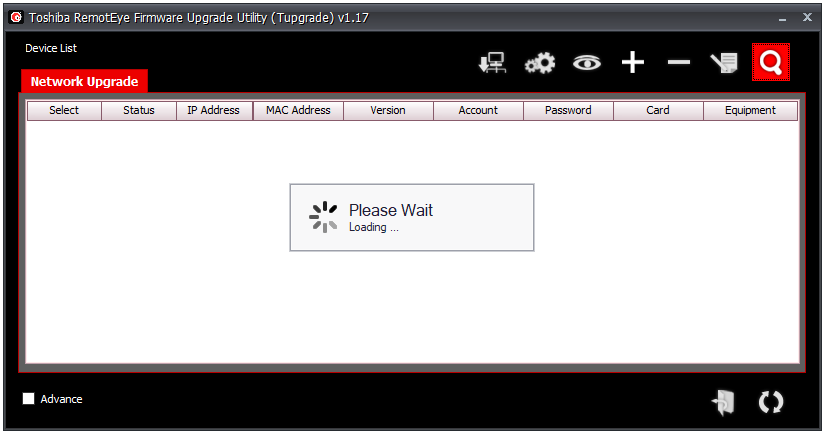
- Select the IP and click edit on the top right. Enter the credential used on the web app and click ok.

- Select the open file option in the bottom right corner and locate the new firmware RMTI ESS vX.X.X.X you downloaded. (Make sure you unzip the folder)

- Select the bin file and click open

- Click on the upgrade firmware button on the bottom right.

- The firmware should start updating, and the upgrade tool will give you the progress. Once completed, the card will restart with the new firmware.

- If new web app does not appear in the browser, simply press Ctrl + R to refresh from the server.
|
Rate this Topic:
|
|||
|
