Importing your signed certificate allows RemotEye 5 to be accessed securely via HTTPS through an IP address or a fully qualified domain name (FQDN). This helps to mitigate the risks of device spoofing and phishing attacks. To do so, please follow the steps provided in this guide.
1. Create a “Certificate Signed Request” on a different machine and ensure you can generate the private key. The bit length is set to 2048. Tip: Go to this “DigiCert” website to create the command to use with the OpenSSL app to make the CSR/Private key files, or use the "CSR Command Generator" as shown in the image on step 3. Here is a link to download an OpenSSL app.
2. Go to your CA authority with your CSR file to get a certificate.
3. Navigate to RemotEye 5 Settings → Security → HTTPS, then click on the "Custom SSL" tab and download the "SSL/TLS Template Certificate" file.
4. Open the file toshiba_tmp.crt with a text editor.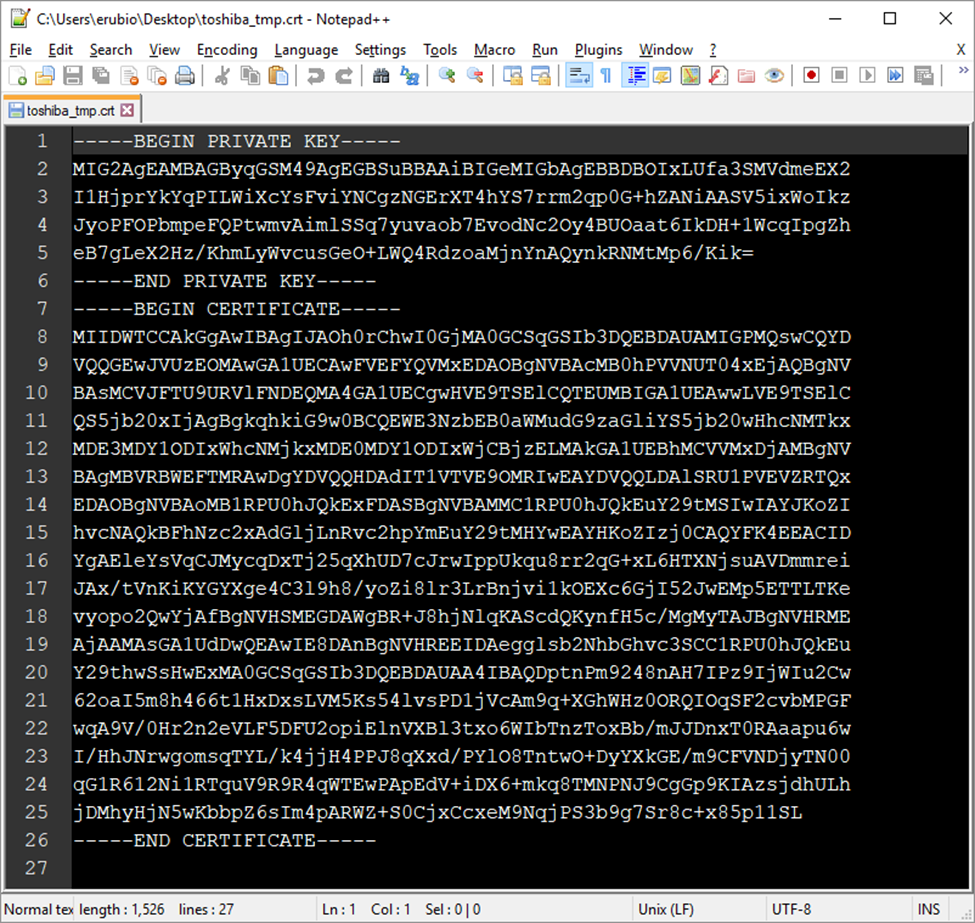
5. Open the certificate generated by your CA server, and copy the certificate key to your clipboard. Then, in the text editor, paste this key between the “BEGIN CERTIFICATE” and “END CERTIFICATE” lines.
6. Now open the private key file generated in step one, copy the key, and paste it between the “BEGIN PRIVATE KEY” and “END PRIVATE KEY” lines and save the file.
7. Now go to RemotEye 5 web interface and log in as an admin user. Navigate to RemotEye 5 Settings → Security → HTTPS, then click on the "Custom SSL" tab and upload the updated “toshiba_tmp.cert” file using the Upload SSL/TLS Signed Certificate upload function.
After completion, here is an output example:

|
Rate this Topic:
|
|||
|
