How to enforce only HTTPS connections
Updated: 01/10/2023
Article #: 9
If you want to ensure that you are always making an encrypted connection to the RemotEye 4 web app, this can be easily accomplished. To do so, you will need to log in to the RemotEye 4 console.
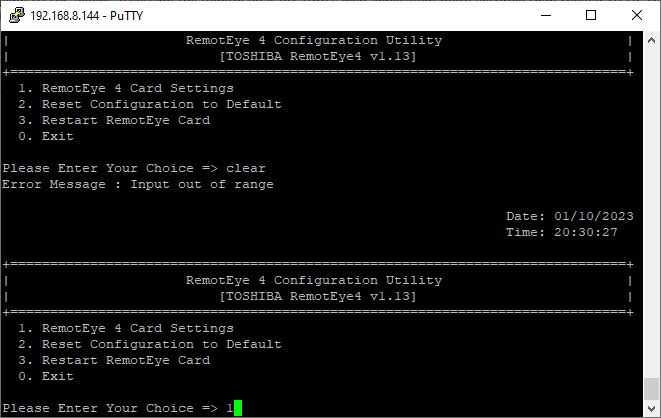
- SSH or Telnet to the RemotEye 4.
- Enter your admin credentials to access the console settings.
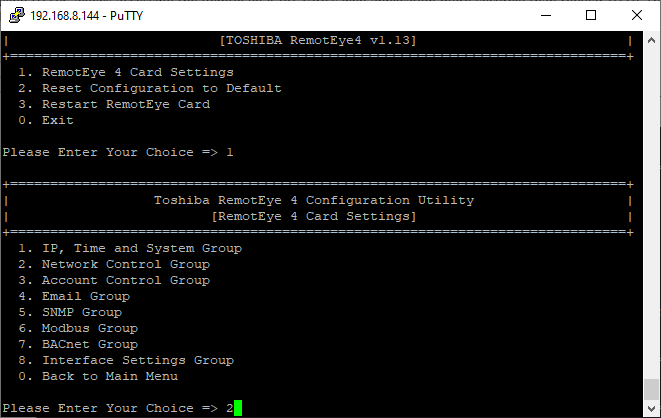
- Select "1" for "RemotEye 4 Card Settings"
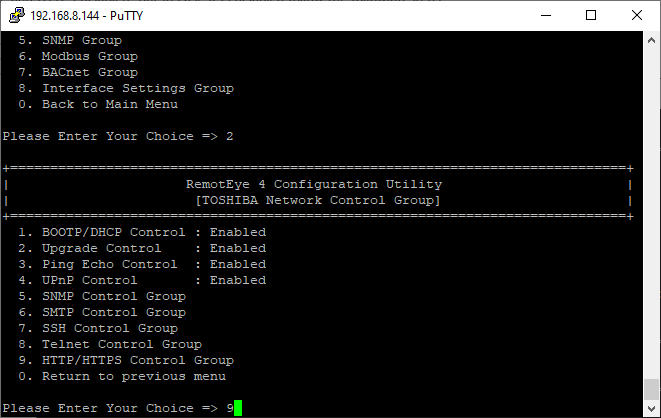
Select "2" for "Network Contol Group"
Select "9" for "HTTP/HTTPS Control Group"
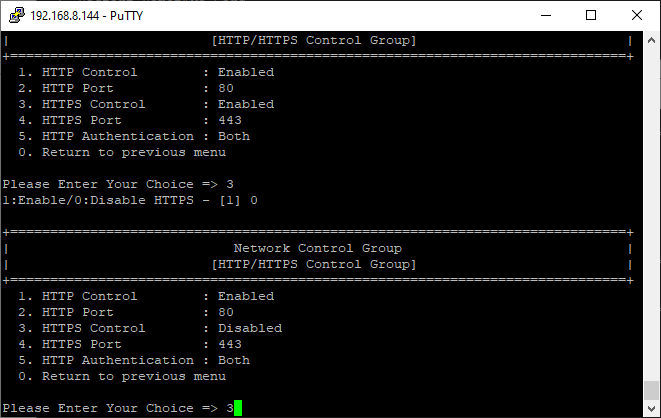
Select "3" for "HTTPS Control" to enable it if it is disabled.
Select "1" for "HTTP Control" and set it to disabled. The final settings should be "HTTP Control" disabled and "HTTPS Control" enabled.
Now only HTTPS connections to the web app will be allowed.

|
Rate this Topic:
|
|||
|
